Form
You can easily create external web forms.
sudo /usr/local/small-shell/adm/gen -app
Type of App (1.BASE | 2.FORM | 3.CUSTOM): 2
# Dialog will be started, You can define keys which will be inserted to the form in the dialog.
Scenario
Here is an example of creating survey form and analyzing result.
- Create Databox for survey
- Create survey form for end user
- Analyze survey result with graph
Required
Please set up Base App beforehand, referring to the Quick start guide.
Create a Databox
For the first step, need to create survey databox to push data through form.
sudo /usr/local/small-shell/adm/gen -databox
Databox Name: survey.db
Do you want to define Primary Key? (yes | no): no
Note
For using external form, primary key should not be defined. Please set "no" in the dialog.
Result of dialog
Databox Name:survey.db
#primary_key
name="hashid"
label="#ID"
type="text"
option="required"

#key(col2)
name="impression"
label="Impression of this product"
type="radio"
params="Good,Average,Poor"
option="required"

#key(col3)
name="comment"
label="Comment"
type="textarea"
option=""
Generate a Form
Then let's create a survey form for end users.
sudo /usr/local/small-shell/adm/gen -app
Type of App (1.BASE | 2.FORM | 3.CUSTOM): 2
Form Name: survey
This is an example of dialog result.
The Form will be generated in the following order, please check it.
-----------------------------------------------------------------

App Type: 2.FORM
Form Name: survey
Form Title: Internal Survey
Target Databox: survey.db
Description: This is an internal survey of product A
Included keys: impression,comment
Access URL: https://${your_server_FQDN}/survey

-----------------------------------------------------------------
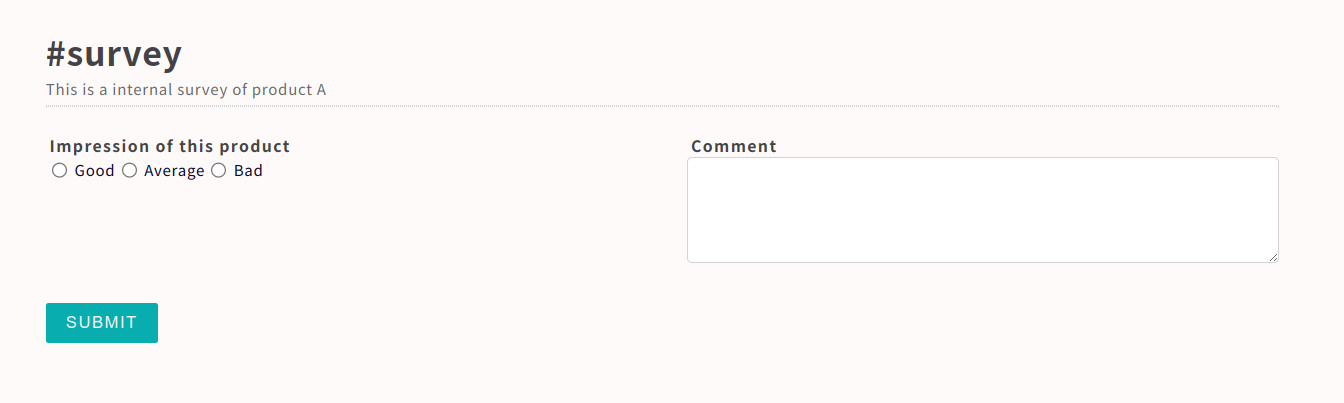
Access to the Form
As you already checked, access URL is shown in the gen dialog. The URL must be ${your_server_FQDN}/${your_Form_name}
e.g.) https://ec2-XX-XX-XX-XX.compute.XXXX.com/survey
Check databox via Base App
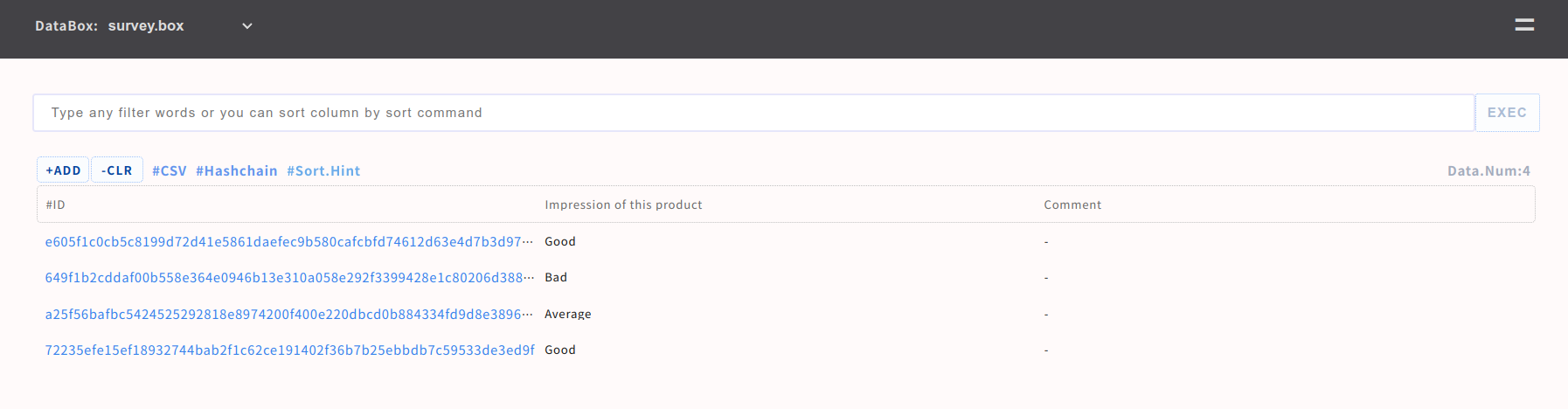
Data will be pushed to the databox through the survey form. Admin can check survey results through Base App. Then you can analyze result on table view or console box.
Make snapshot graph
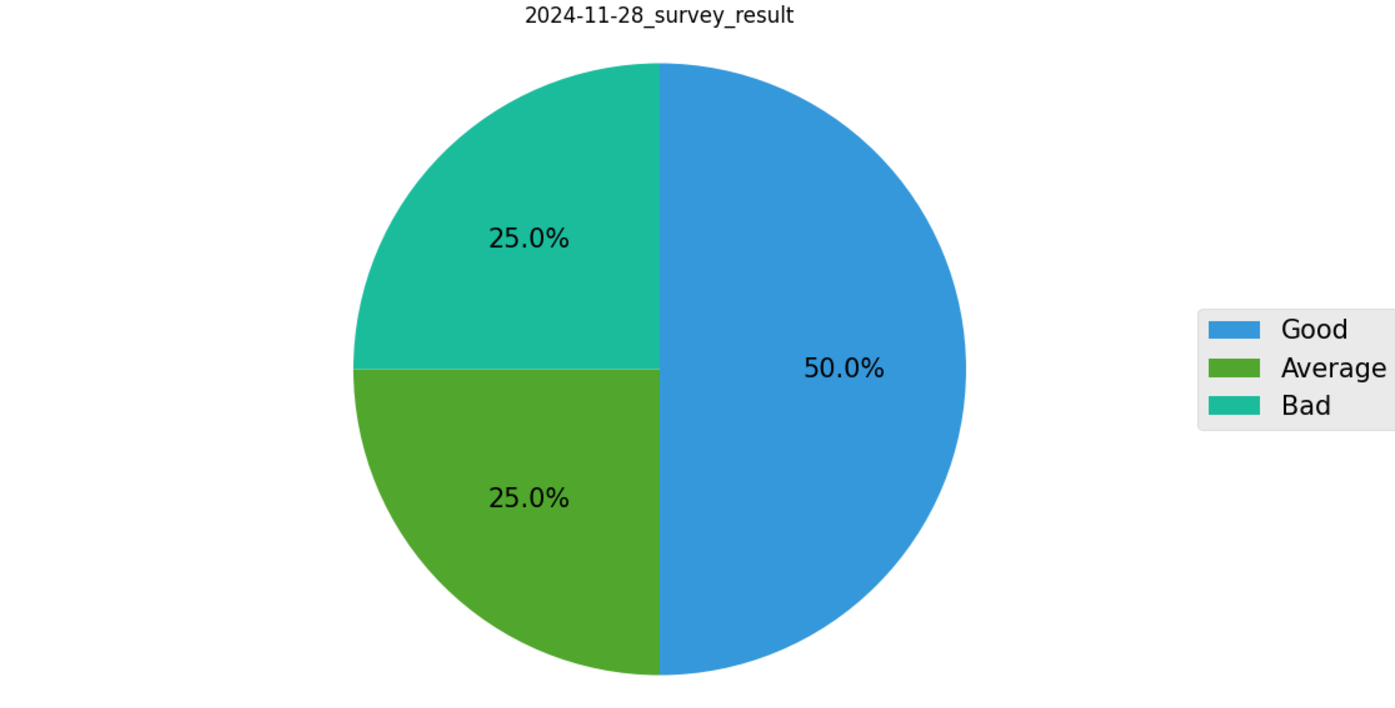
You can visualize survey results by generating graph. Please setup pyshell beforehand. Following is an example of making graph.
Make November 28th 2022 as snapshot.
sudo -u small-shell /usr/local/small-shell/util/scripts/countup.sh databox:survey.db \
key:impression filters:Good,Average,Bad type:pie title:2022-11-28_survey_result frequency:snapshot
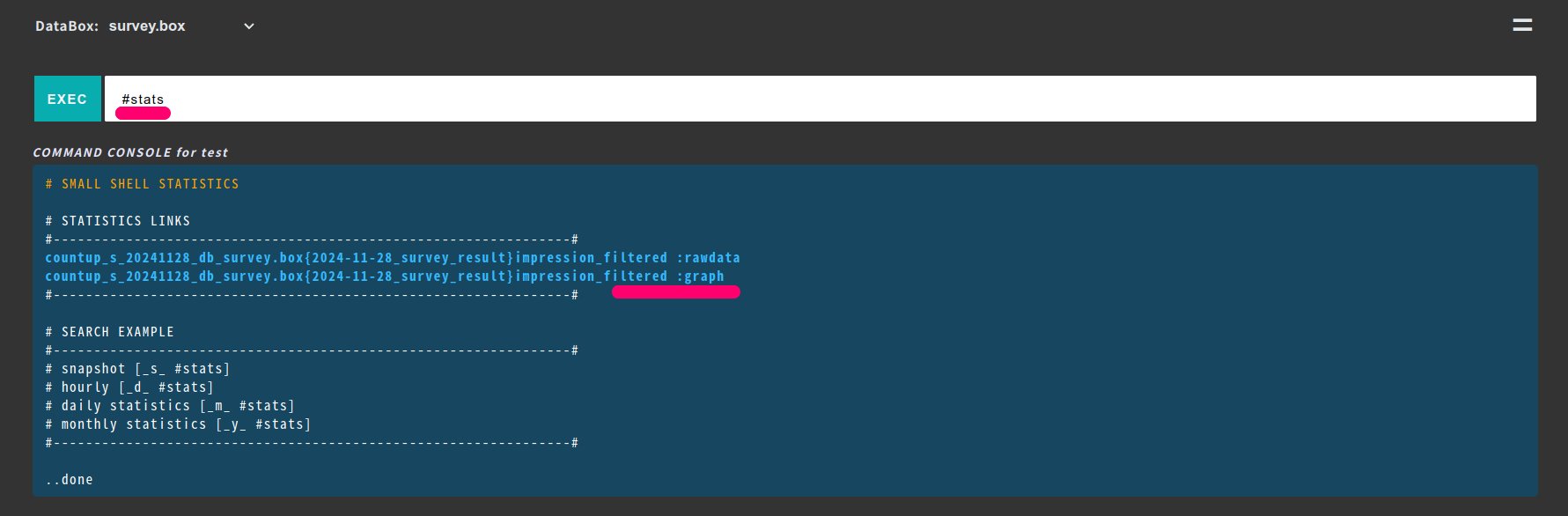
please input #stats to console box on Base App.
Base App > Console [#stats]
Change View
You can modify html def of the form directly.
sudo vi /var/www/def/${your_Form_name}_get_new.html.def
e.g.) sudo vi /var/www/def/survey_get_new.html.def

--code--
<html>
  <head>
    <meta charset="UTF-8" />
    <title>survey.new</title>
    <meta name="viewport" content="width=device-width,initial-scale=1.0,minimum-scale=1.0,maximum-scale=1.0,user-scalable=no">
    <link rel="stylesheet" href="http://localhost/survey.css">
  </head>
  <body>
    <div class="container">
      <div class="form-box">
        <div class="description">
          <h1>Internal Survey</h1>
          <p>This is an internal survey of product A</p>
          <hr>
          <br>
        </div>
        <form id="one-time-form" method="post" action="./survey?req=set&id=%%id" autocomplete="off" onclick="document.charset='utf-8';">
        <ul>
         %%dataset
        </ul>
        <button class="button" id="one-time-button" type="submit">SUBMIT</button>
        </form>
      </div>
    </div>
    <script>
      // handle one time button
      document.getElementById('one-time-form').addEventListener('submit', function() {
        document.getElementById('one-time-button').disabled = true;
      });
    </script>
  </body>
</html>
-------
Change row size for textarea
You can change row size by inserting code to ${your_Form_name}_new.html.def.
e.g)
sudo vi /var/www/def/survey_new.html.def

--code--
<script>
  document.getElementById("txtara").rows="10"
</script>
--------