Use macOS
You can also deploy Small-Shell on macOS. A Mac mini is an excellent choice for a local network server.
Setup Env on Mac terminal
First of all, add small-shell user to the OS and then install required commands and libraries.
# add a user
sudo dscl . -create /Users/small-shell
sudo dscl . -create /Users/small-shell UserShell /usr/bin/false
sudo dscl . -create /Users/small-shell UniqueID 1001
sudo dscl . -create /Users/small-shell PrimaryGroupID 1001
sudo dscl . -create /Users/small-shell NFSHomeDirectory /Users/small-shell

# addd a group
sudo dscl . -create /Groups/small-shell PrimaryGroupID 1001

# create directory
sudo mkdir /Users/small-shell
sudo chown small-shell:small-shell /Users/small-shell

# install brew if it's not installed yet
/bin/bash -c "$(curl -fsSL https://raw.githubusercontent.com/Homebrew/install/HEAD/install.sh)"

# insetall basic commands
brew install jq
brew install php
brew install gnu-sed
brew install gawk
brew install flock
brew install node
Installation
Once installed required commands and libraries, let's install small-shell from GitHub.
# install
cd /usr/local
sudo git clone https://github.com/small-shell/small-shell.git
sudo chown -R small-shell:small-shell /usr/local/small-shell
sudo chmod 755 /usr/local/small-shell/adm/gen
Generate a Databox
Then Let's generate databox as the data store of web App. For more details, please see the DATA shell documentation.
sudo /usr/local/small-shell/adm/gen -databox
#-> dialog will be started
Note
You can exit dialog anytime with Ctrl + C
Dialog
In this example, "item_name" will be primary key. If you will not define primary key, please answer "no".
Databox Name: item.db
Do you want to define Primary Key? (yes | no): yes

Primary Key Name: item_name
Primary Key label: Item Name
Add more columns to the databox? (yes | no): yes

Col2 Key Name: description
Col2 Key Label: Description
Data Type (text | select | radio | checkbox | email | num | tel | date | date-time | url | textarea | file): text^M

Set this as required? (yes | no): yes
Add more columns to the databox? (yes | no): no
Generate Base App
Once databox is ready, let's generate Base App. For more details of Apps, please see the APP Shell documentation.
sudo /usr/local/small-shell/adm/gen -app
In this example http will be used as protocol. If you have cert and key for ssl, use https or if you want to generate https cert, check cookbook
Type of App (1.BASE | 2.FORM | 3.CUSTOM): 1
Type of Server (1.small-shell Web srv | 2.other Web srv): 1
protocol (http | https): http
Web Server FQDN or IP addr (e.g. 192.168.10.1): $your_server_FQDN
Add a user
The following example shows how to add the username "test", "test" can initialize and get base64 key by accessing the URL that will be generated by the command.
sudo /usr/local/small-shell/adm/ops add.usr:test
Please notice that the URL can be accessed only 1 time.
-------------------------------------------------------------------------------
This is the URL for key initialization and generation for test on Base App
-------------------------------------------------------------------------------
http://${your_server_FQDN}/cgi-bin/auth.base?initialize=*****26fd2,4c5a2ae68d20e530b4ce457c71eae42590135268e1fb933a945f7e188678ccf4
End user can access to Base App by click the button and key will be stored to local storage of browser.
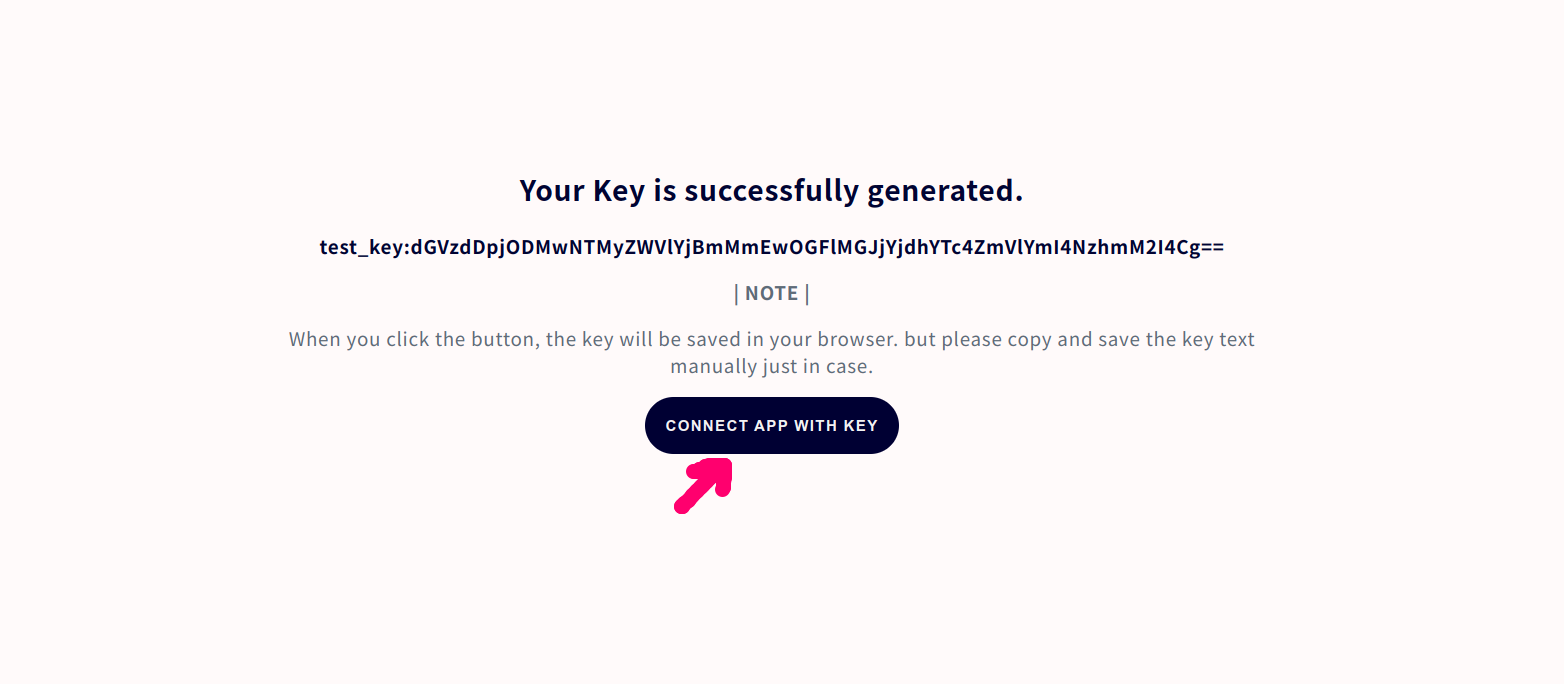
Access to Base App
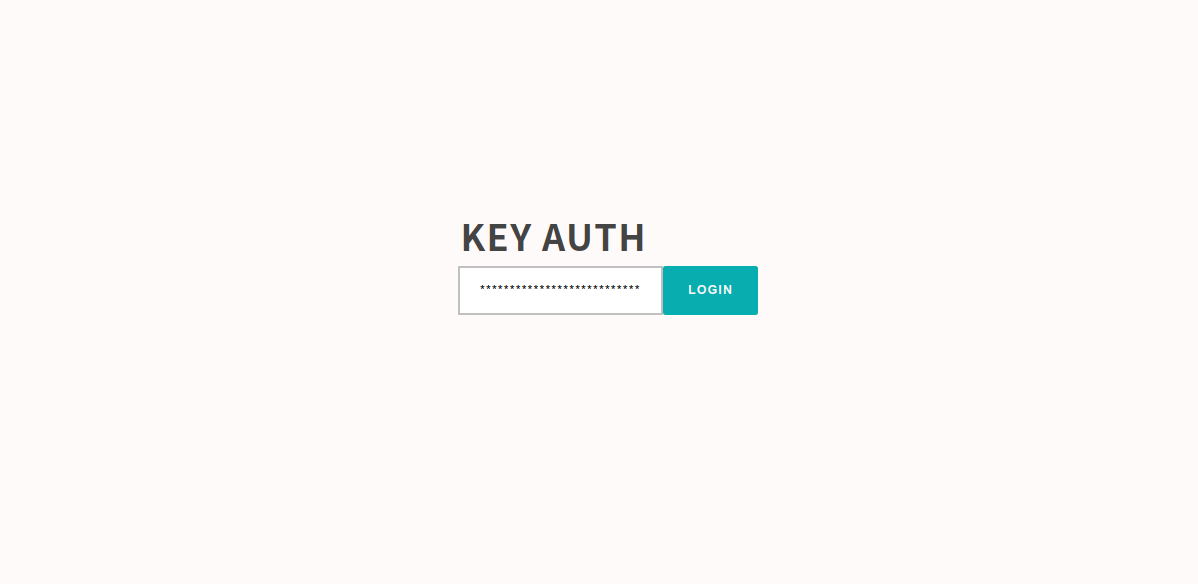
The authentication page image of Base App is shown below. The access URL will be shown in the end of the gen dialog but basically it will be "https://${your_server_FQDN}/base".
The key will be inserted automatically if it's stored in local storage.
Base App Features
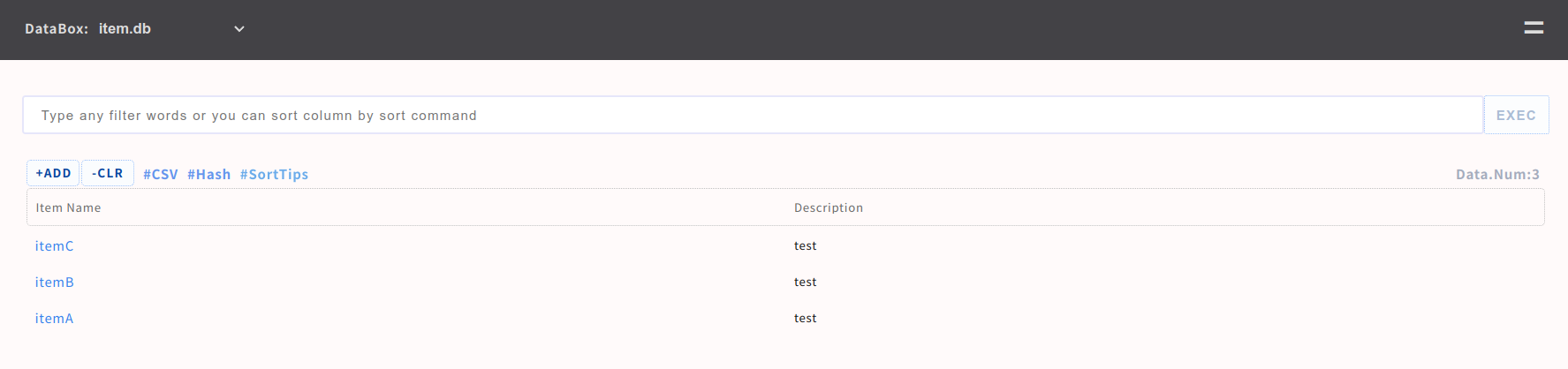
End user can use following App features on Base App.
- Push or Get data through simple UI
- Use spaces to perform an AND search [e.g. word1 word2]
- Multiple sorting options using sort command
- Search using specific key of column [e.g key{wordA}]
- Download search result by CSV format
- Import Data with CSV format
- Define number of line per page [e.g #line:20] [e.g word #line:20]
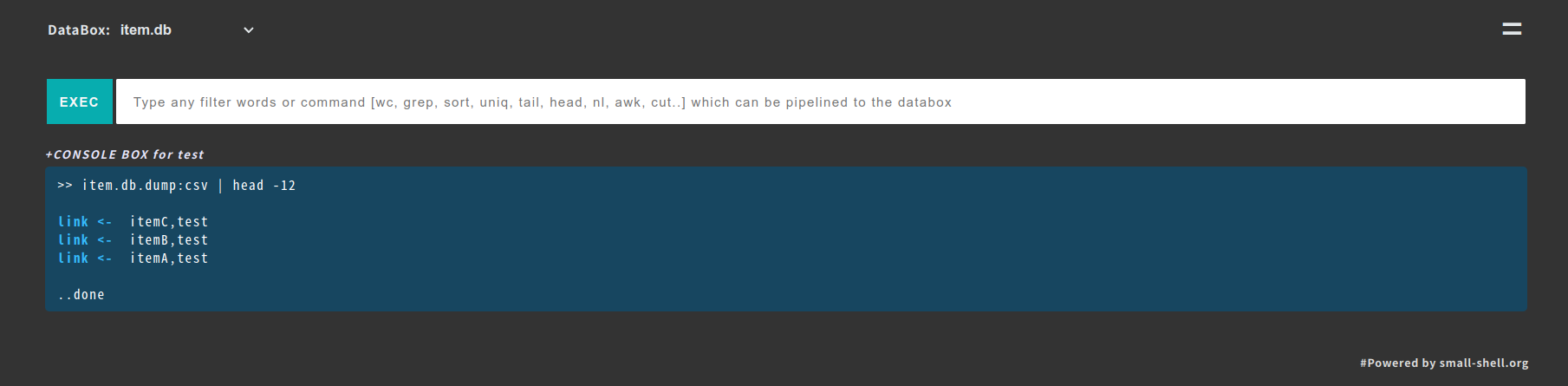
- Analyze data using linux commands [grep, wc, awk, uniq, sed, tail, head, nl, sort, cut ..]
- Search log with freewords by adding tag [e.g. word1 word2 #log]
- Show statistics #stats, if you define statistics job.
Re-generate initialize URL
If end user lost their key, you can re-generate initialize URL by following command. In this example, admin will re-generate initialize URL for user name "test"
sudo /usr/local/small-shell/adm/ops initialize.usr:test
Web Server Operation
You can restart Web server by launchctl command
# restart
sudo launchctl stop org.small-shell.node
sudo launchctl start org.small-shell.node

# check process
ps -ef | grep app.sh
# check log
ls /var/www/log
Change sleep setting
If you are using Mac book, you need to change sleep setting on GUI to avoid service down when display is off. Setting should be done from System preference > Security & Privacy > Power Adaptor
Note
Please check "Prevent your Mac from automatically sleeping when the display is off"
Enable cron access (optional)
It's not required for Web service but if you want to use e-cron for automation, you need to allow cron to access data by changing privacy setting. Setting should be done on GUI from System preference > Security & Privacy > FUll Disk Access.
Update to the latest version
You can updsate small-shell very easily. Here is an example of update procedure.
Once you clone the latest code, please re-generate Base App.
cd /var/tmp
sudo git clone https://github.com/small-shell/small-shell.git
sudo \cp -Rf small-shell/* /usr/local/small-shell/
sudo rm -rf small-shell

# re-generate Base App
sudo /usr/local/small-shell/adm/gen -app
-----------------------------------------------
Type of App (1.BASE | 2.FORM | 3.CUSTOM): 1
------------------------------------------------
-> dialog will be started
Create Custom App
Custom App is editable app that you can add many functions to the app. See detail in here.